How to Install Realtek Driver on macOS for Higher Ethernet Speed
Applicable Product
Cable Matters 10Gbps USB-C Ethernet Adapter (Model 201496)
Cable Matters 1000Mbps USB-C Ethernet Cable (Model 201083)
Issue
Some macOS computers may use the built-in Apple network driver for the Realtek chipset. Installing the Realtek driver allows the adapter to use the dedicated Realtek driver and helps achieve better Ethernet performance when connected to compatible network equipment.
Before You Start
- Connect the Cable Matters 201496 adapter or 201083 ethernet cable to your Mac
- Connect your Mac to the Internet through another connection (Wi-Fi recommended)
- Make sure you have administrator access
Step 1: Download and Install the Realtek Driver
Click here to download the driver for Model 201496(Realtek8159)
Click here to download the driver for Model 201083(Realtek8153)
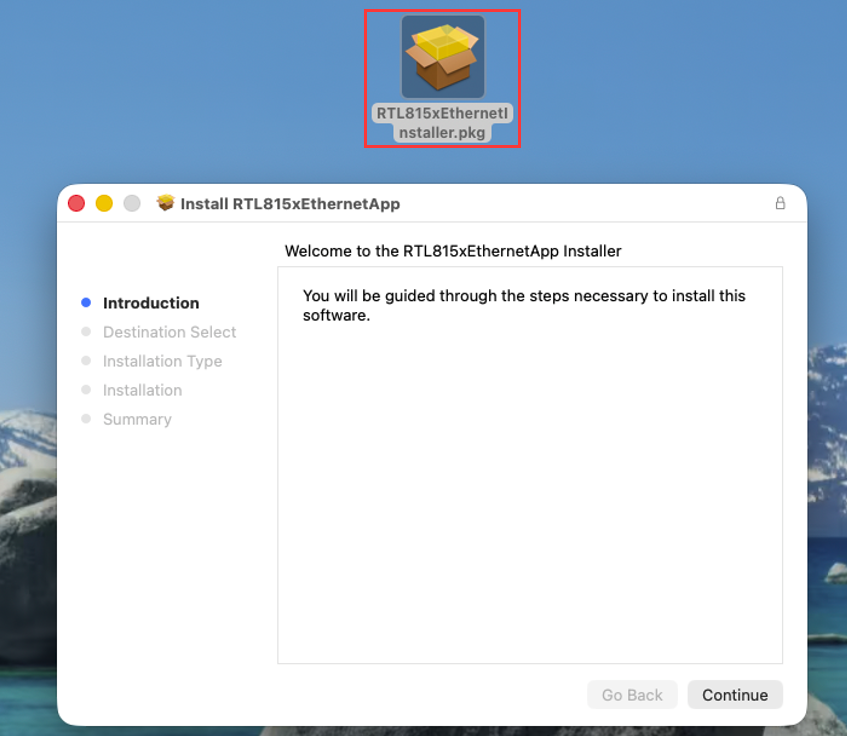
Open the downloaded Realtek RTL815x driver package (.pkg). Follow the installation instructions and enter your Mac administrator password when prompted.
Step 2: Confirm Driver Installation
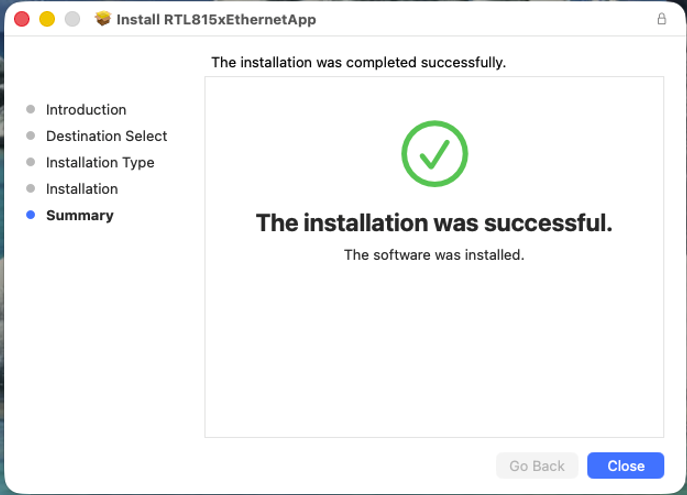
Wait until the installation completes successfully, then close the installer.
Step 3: Launch RTL815xEthernetApp from Applications
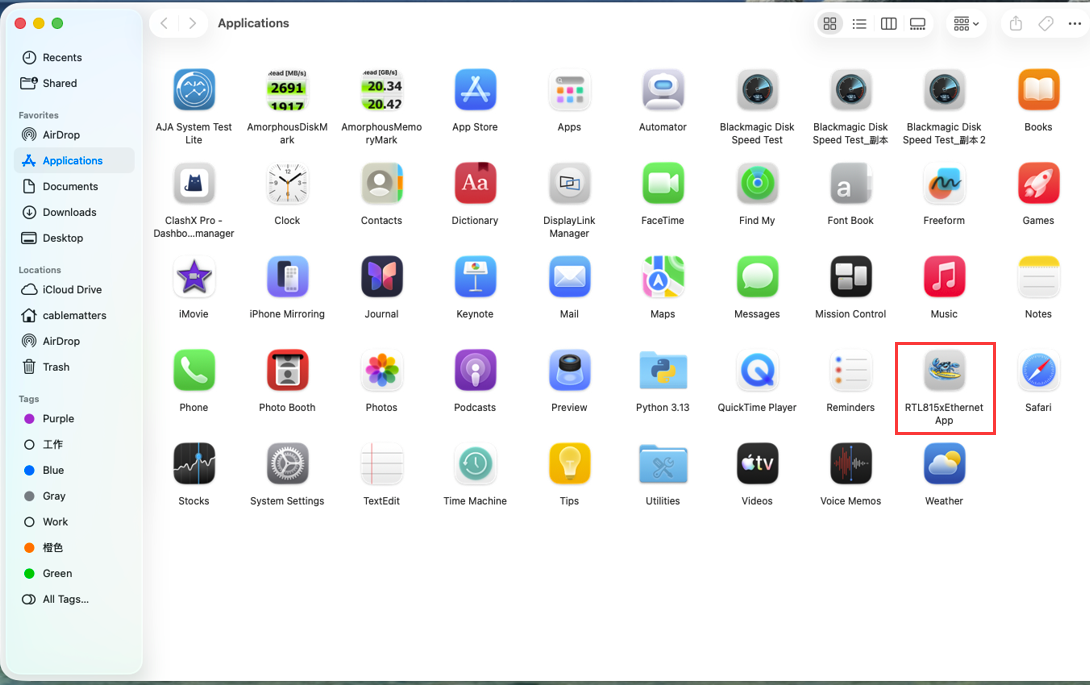
Open Finder → Applications and launch RTL815xEthernetApp. The application will guide you through enabling the required driver extension.
Step 4: Allow the Realtek System Extension
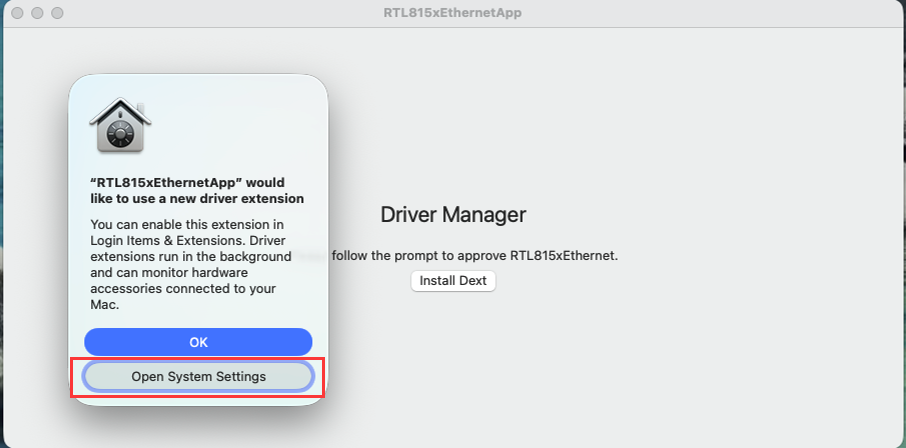
Open System Settings → Privacy & Security. Locate the Realtek system software approval message and click Allow.
If you don't see the message, or if you accidentally clicked "OK" or dismissed it, don't worry. You can manually go to System Settings and enable the driver extension in step5.
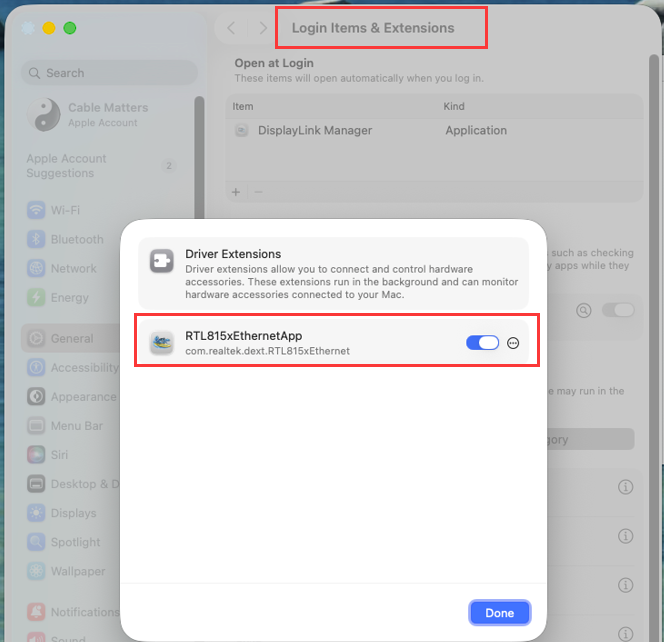
Step 5: Enable the Realtek Driver Extension
In Driver Extensions, locate RTL815xEthernetApp and enable the extension switch.
Step 6: Restart Your Mac
Restart your Mac to complete the driver installation. Then reconnect the Cable Matters Ethernet adapter/cable and check Ethernet performance.
Step 7: Verify Ethernet Adapter Settings & Set Speed to Auto
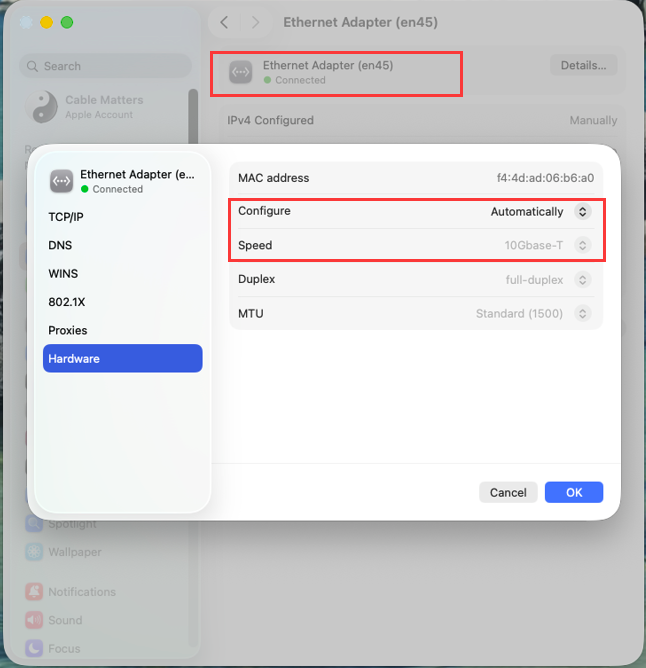
After restart, go to System Settings → Network → Ethernet. The adapter may appear as "Ethernet Adapter" due to a current driver limitation and may not display the 10Gbps adapter name. This does not affect performance.
Set Configure and Speed to Automatically to allow macOS to negotiate the best available Ethernet speed.
Troubleshooting
• If the driver extension does not appear:
Disconnect the adapter, restart your Mac, reconnect the adapter, and check Privacy & Security settings again.
• If Ethernet speed does not improve:
Verify that your Ethernet cable, router/switch, USB-C port, and network equipment support the expected speed.
Notes
Actual Ethernet speed depends on the adapter, computer hardware, cable quality, network equipment, and test environment.