MacOS BetterDisplay and Windows CRU Instructions
Applicable Products
- DisplayPort 1.4 to 8K HDMI Adapter (102101)
- Mini DisplayPort to 8K HDMI Adapter (101101)
- Certified Active Ultra High Speed HDMI cable (Fiber Active Optical 8K HDMI cable) (300047)
- 48Gbps Ultra 8K HDMI Cable with 8K 60Hz and HDR (300029)
Issue
Some HDMI 2.1 displays and TVs may flicker, briefly go black, lose the video signal, or repeatedly disconnect and reconnect when used with high-bandwidth HDMI 2.1 source devices. These symptoms may be related to Fixed Rate Link (FRL) interoperability between the source device, any connected adapter or dock, the cable, and the display.
Reducing the negotiated FRL bandwidth can improve link stability on some configurations. This is a compatibility workaround and does not prove that any individual product is defective.
Before You Start
- Connect the HDMI source device to the target display or TV
- Confirm that the correct display is detected by the operating system
- Use the display’s native HDMI 2.1 port and a certified Ultra High-Speed HDMI Cable when available
- Administrator permission may be required, especially when CRU writes the Windows registry override
- Record the current resolution, refresh rate, color mode, and FRL status before making changes
Software Downloads
MacOS – BetterDisplay: Download BetterDisplay from the official GitHub releases page
Windows – Custom Resolution Utility (CRU): Download CRU from the official Monitor Tests page
How to Verify FRL Changes on Your Display
To confirm whether the bandwidth reduction is working, check the display's on-screen status after applying the changes. Some displays show an FRL lane-rate indicator, such as 4L12 or 4L10, in an information or signal-status menu. The menu name and availability vary by brand and model.
- If you have an LG TV: Use the VRR Information overlay (the method used in the chart below).
- If you have a Sony, Samsung, or other brand TV: Look for a "Signal Information", "HDMI Status", or "Device Info" menu under the TV's Settings or Picture options.
- If you are using a standard PC monitor: Check the monitor's On-Screen Display (OSD) menu, typically under "Information", "System Info", or "Monitor Status".
| LG Indicator | Meaning | Aggregate Link Rate |
| 4L12 | 4 FRL lanes x 12 Gbps per lane | 48 Gbps |
| 4L10 | 4 FRL lanes x 10 Gbps per lane | 40 Gbps |
Interpretation:
- "RGB 10b" describes 10-bit RGB color depth. “4L10” describes the FRL link itself. A 10-bit color mode resulted in 4L10 on the tested setup, but 10-bit color depth does not universally guarantee a 40 Gbps FRL link.
- You are looking for the lane configuration—specifically, whether it changes from 4L12 (48 Gbps) to 4L10 (40 Gbps). The exact menu name doesn't matter; the lane count does.
macOS Solution: Reduce HDMI Bandwidth with BetterDisplay
This method selects a lower-color-depth RGB mode. It does not create the Windows-style CRU registry override described later in this guide.
Step 1: Launch BetterDisplay
Open BetterDisplay from the Applications folder, select the connected HDMI display, and confirm that you are changing the intended display.
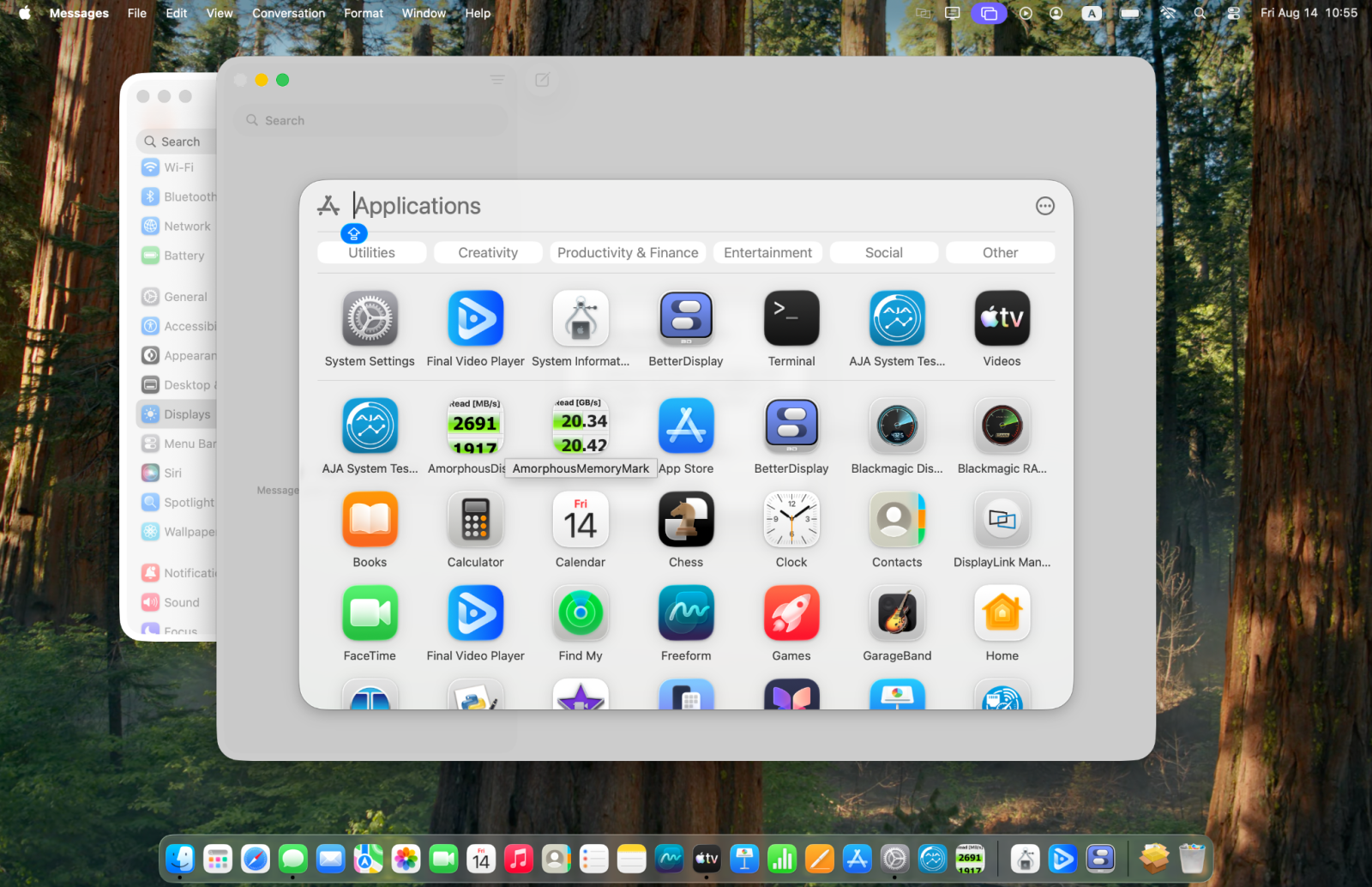
Open BetterDisplay from Applications.
Step 2: Record the Current HDMI FRL Mode
Before changing the color mode, check your display's on-screen signal information (refer to "How to Verify FRL Changes" above) and note the current lane rate. In our tested LG TV example, the original link reported:
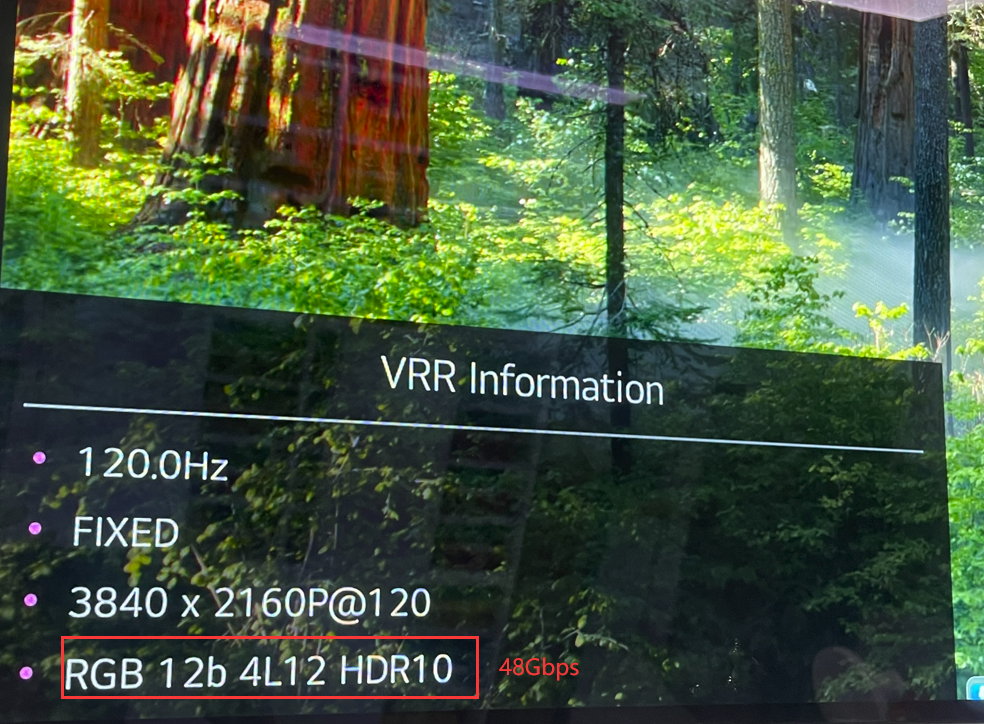
Tested LG TV before the change: 4L12 (48 Gbps)
Step 3: Enable HDR and Select the 10-bit RGB Mode
In macOS System Settings, open Displays, select the HDMI display, and enable High Dynamic Range. In BetterDisplay, choose the 10-bit HDR10 RGB Full Range color mode shown below.
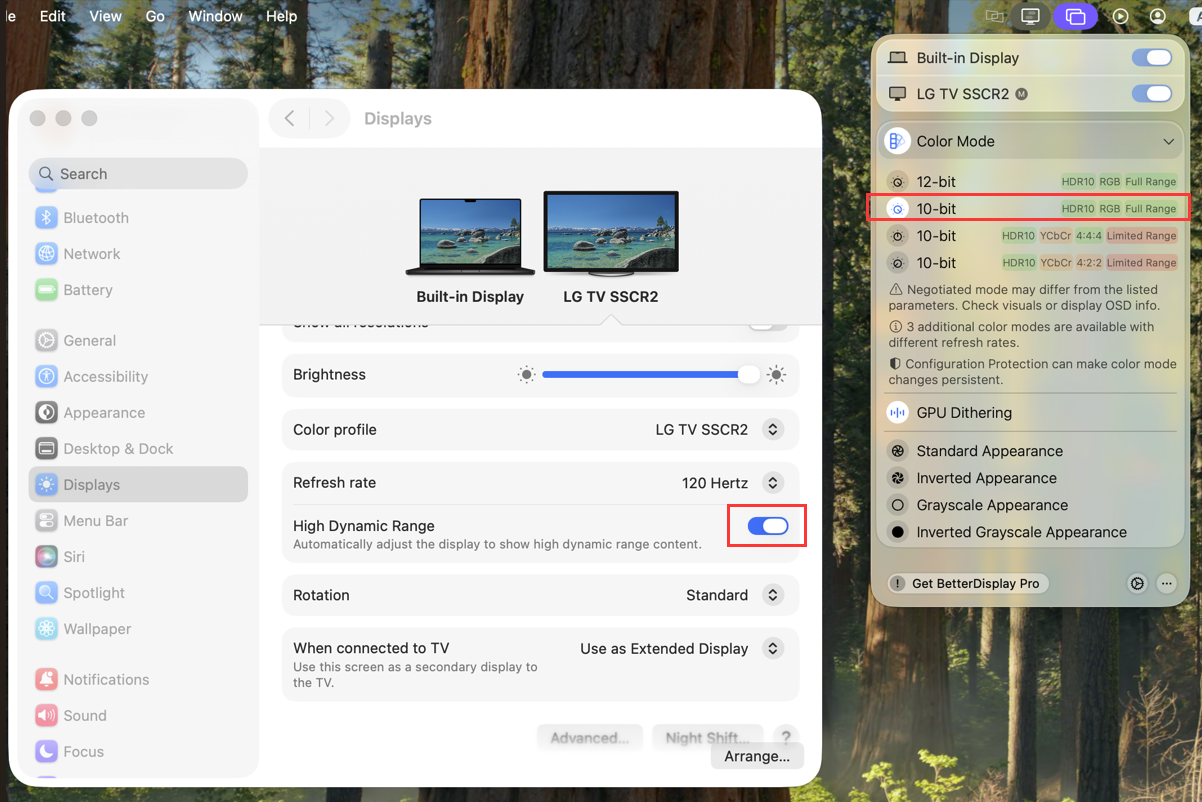
Enable HDR in macOS and select 10-bit HDR10 RGB Full Range in BetterDisplay.
Expected behavior: On the tested setup, selecting 10-bit RGB reduced the negotiated FRL rate. The negotiated mode may differ with another Mac, GPU, adapter, dock, cable, TV, or macOS version.
Step 4: Verify the Reduced HDMI FRL Mode
Reopen the TV’s VRR Information overlay. In the tested configuration, the link changed to:
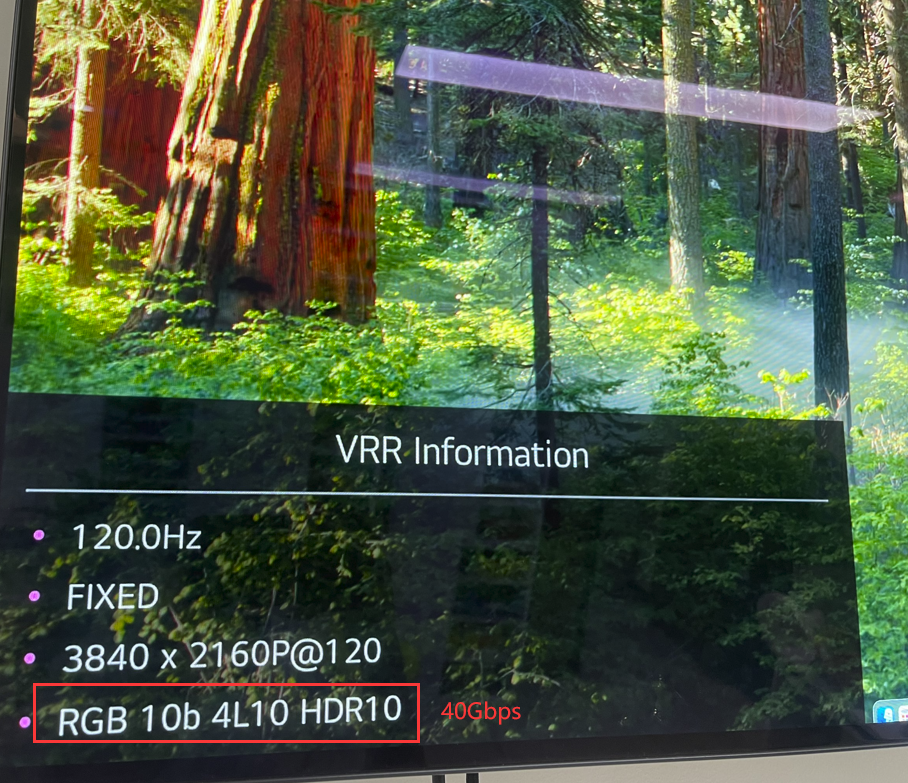
Tested LG TV after the change: 4L10 (40 Gbps).
Windows Solution: Limit the Maximum FRL Rate with CRU
CRU creates a software EDID override in the Windows registry. It does not modify the display hardware or rewrite the factory EDID stored in the display.
Step 1: Launch Custom Resolution Utility
Extract the downloaded CRU package, and then run CRU.exe. Approve the User Account Control prompt if it appears.
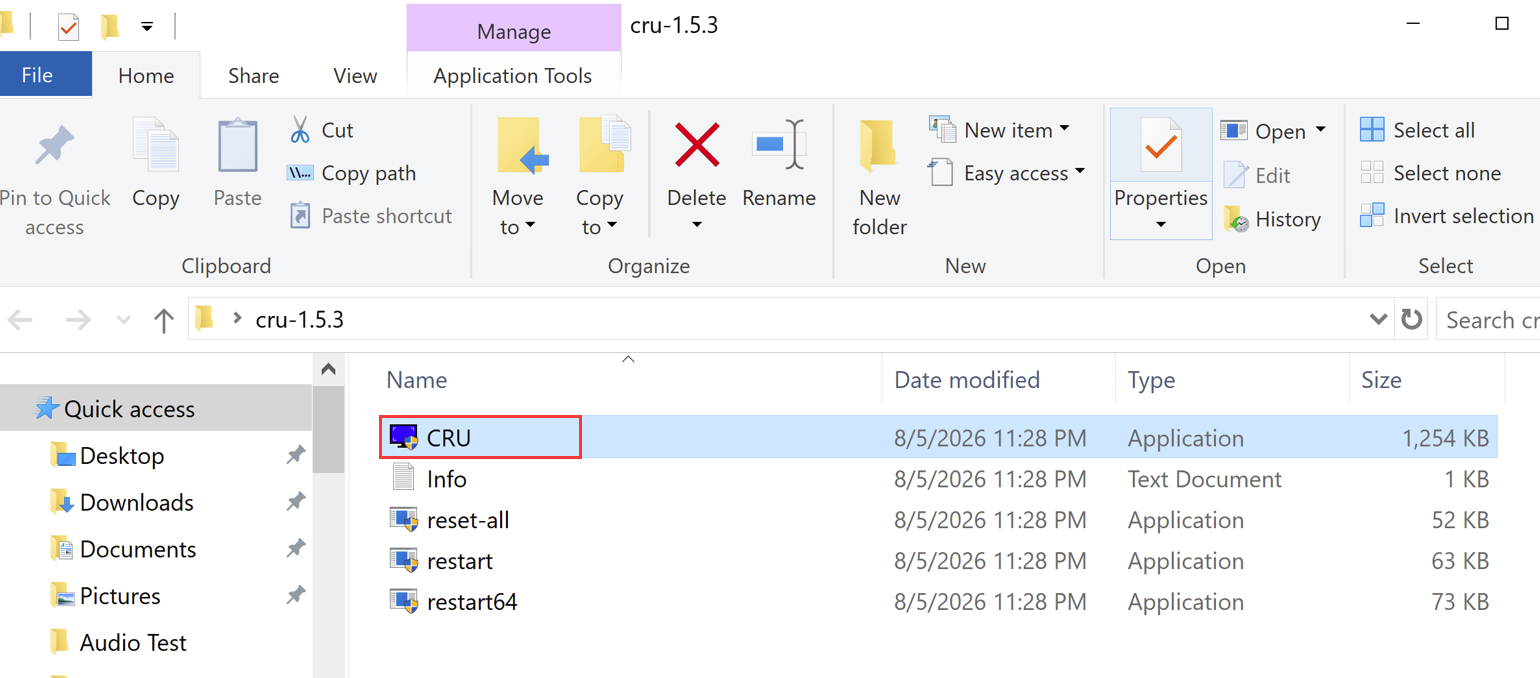
Run CRU.exe from the extracted package.
Step 2: Select the Connected HDMI Display
- Select the connected HDMI display or TV from the display list. The “(active)” label indicates that the graphics driver recognizes the display.
- Under Extension blocks, double-click the CTA-861 extension block.
- In Data blocks, double-click HDMI 2.1 support.
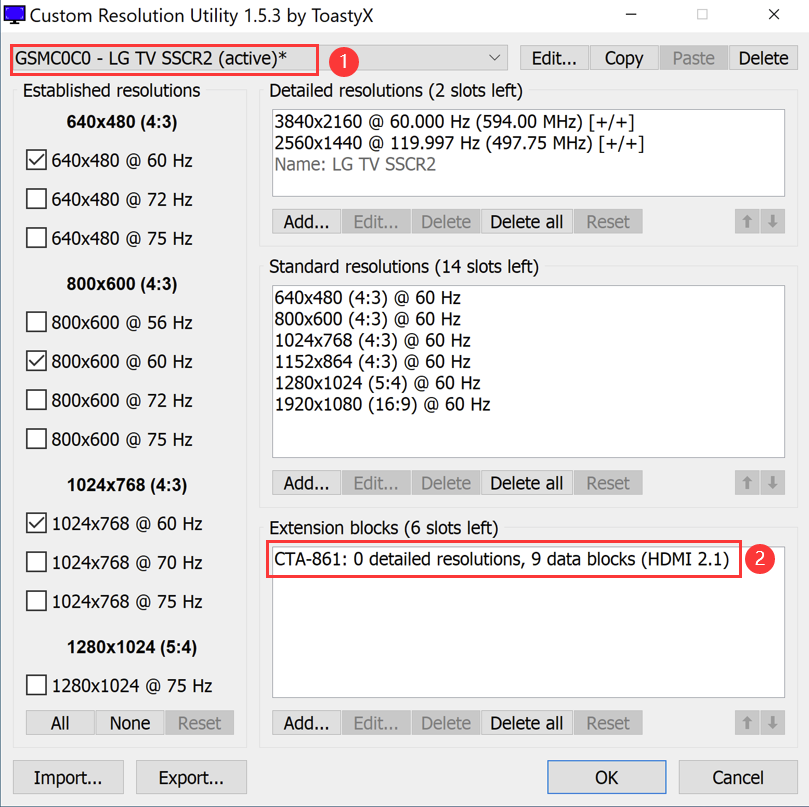
Select the active display, and then open its CTA-861 extension block.
Step 3: Open the HDMI 2.1 Support Data Block
In the CTA-861 Extension Block window, select HDMI 2.1 support and click Edit, or double-click the entry.
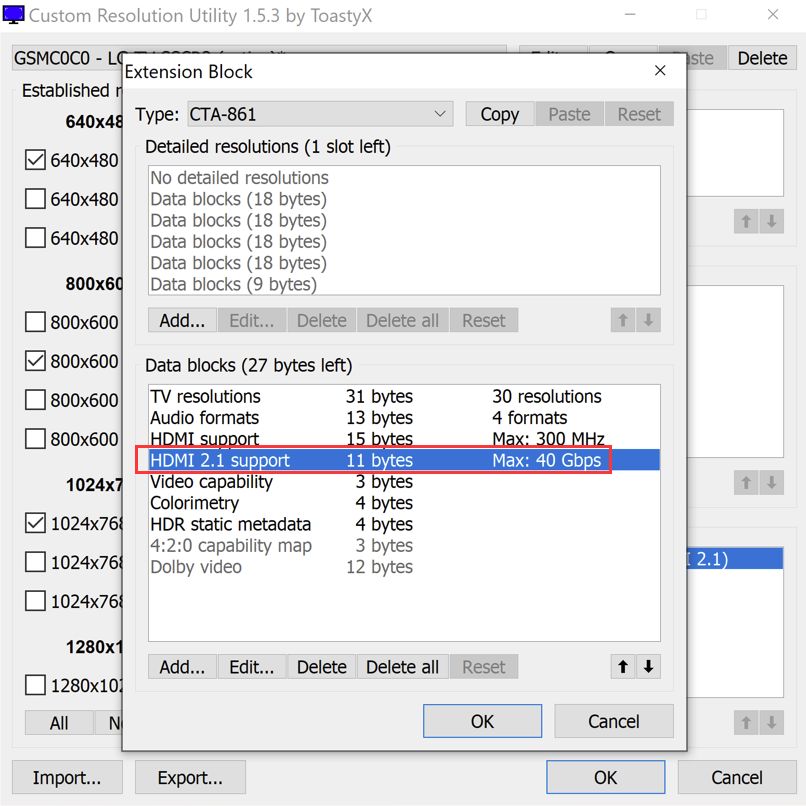
Open the HDMI 2.1 support data block.
Step 4: Reduce the Maximum FRL Rate
In the HDMI 2.x Support window, change Maximum FRL rate from 48 Gbps (12 Gbps × 4 lanes) to 40 Gbps (10 Gbps × 4 lanes).
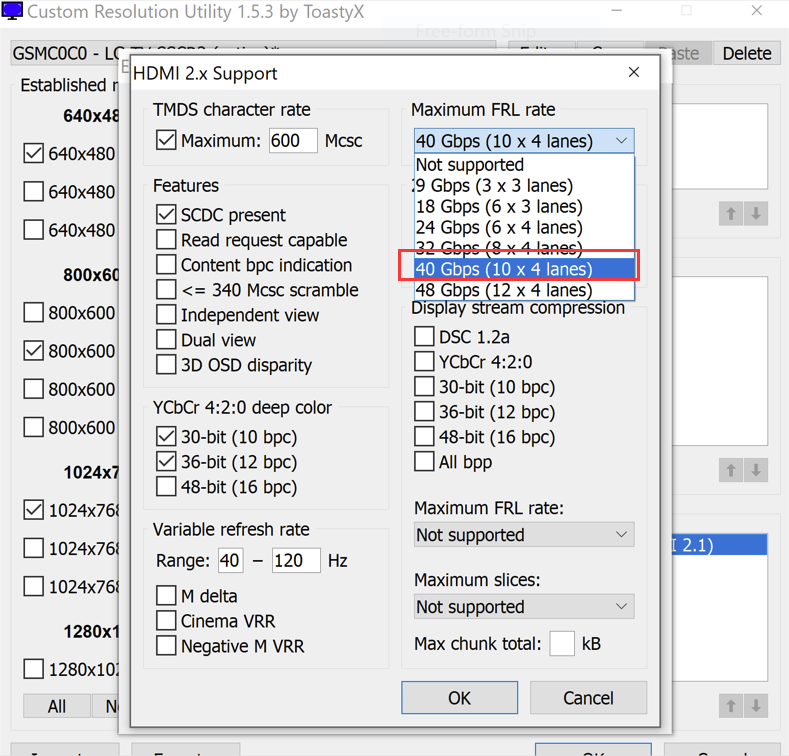
Select 40 Gbps (10 Gbps × 4 lanes).
Click OK in the HDMI 2.x Support window, click OK in the Extension Block window, and then click OK in the main CRU window to save the software EDID override.
Step 5: Restart the Graphics Driver
Save any open work, and then run restart64.exe from the CRU package on 64-bit Windows. The screen may temporarily go blank while the graphics driver restarts.

Run restart64.exe to apply the saved override.
Recovery shortcut: If the display does not return after approximately 15 seconds, click on the black CRU restart utility window (the command prompt window that launched with restart64.exe) to give it focus, and then press F8 on your keyboard. This triggers recovery mode and temporarily unloads the EDID overrides to bring your screen back.
Step 6: Verify the Windows Display Configuration
Open Settings > System > Display > Advanced display and verify the intended operating mode. In the tested example:
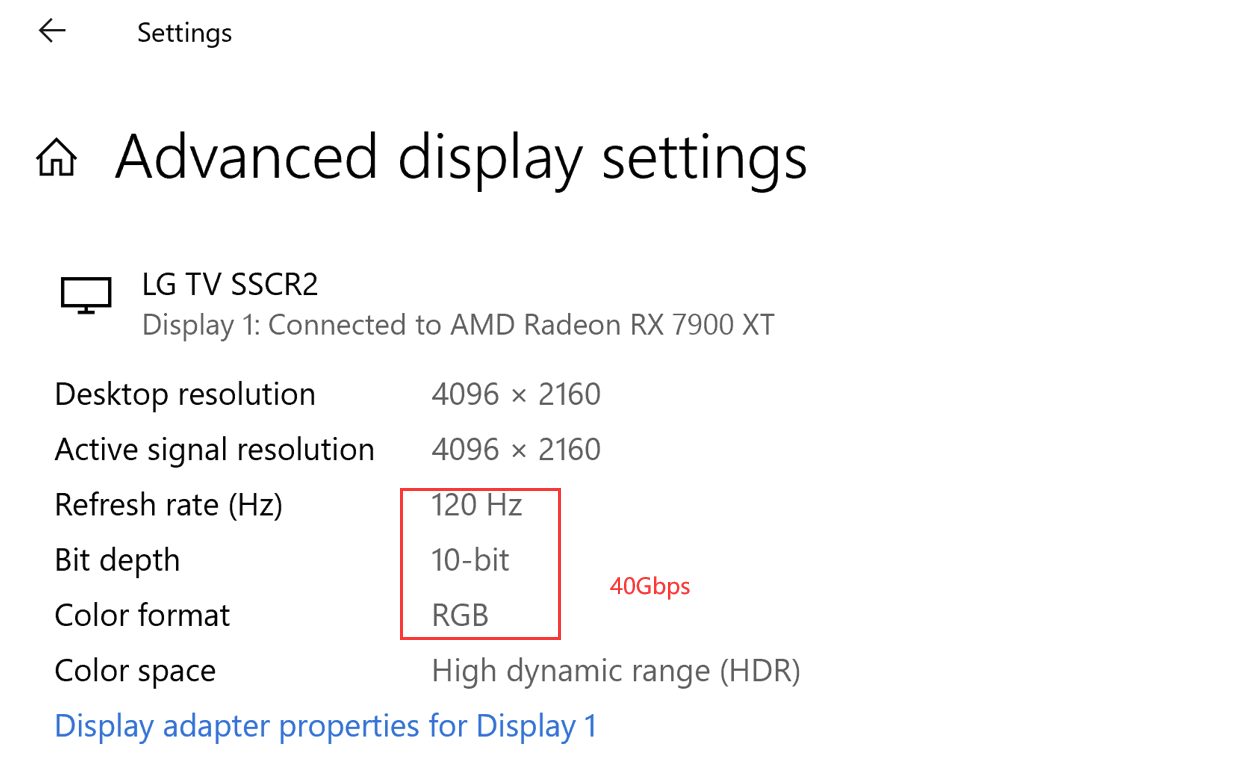
Windows example after limiting the maximum FRL rate to 40 Gbps.
Step 7: Verify the FRL Mode on Your Display
Using the same display information menu described earlier in "How to Verify FRL Changes", check whether your display now reports 4L10 instead of 4L12. The side-by-side comparison below shows the expected change on the tested LG TV:
.png)
Restore the Previous Configuration
MacOS
In BetterDisplay, reselect the color mode that was active before the change. If a BetterDisplay configuration override was created separately, remove or disable that override using BetterDisplay’s display configuration controls.
Windows
- To remove the override for one display, open CRU, select that display, click Delete at the top of the main window, click OK, and reboot Windows.
- To remove all CRU overrides, run reset-all.exe and reboot Windows.
- If the display has no usable picture, perform the reset from Windows Safe Mode if necessary.
If you have any questions or need further assistance, please contact support@cablematters.com.