

|
|
Article ID: 191
Last updated: 30 May, 2026
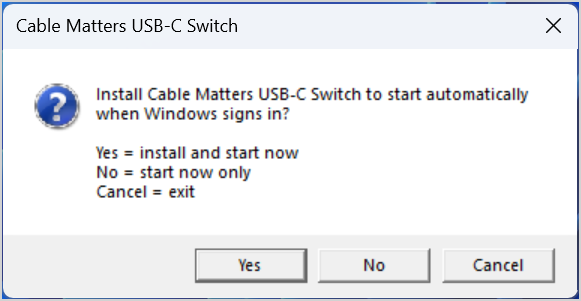
1. Before You StartDownload and unzip the Windows software package first. Software download: Cable_Matters_USB-C_Switch_Windows.zip Place Cable_Matters_USB-C_Switch.exe in a local folder and double-click it to run. The software runs as a normal Windows tray application, not as a Windows service, so it can detect keyboard and mouse shortcuts from the active user session. 2. First Launch and Startup Option2.1. Double-click Cable_Matters_USB-C_Switch.exe. 2.2. On the first launch, choose one of the startup options shown below.
First-launch prompt: choose whether the app should start automatically with Windows. 2.3. After the software starts, click OK on the success message.
Startup confirmation message. Click OK to continue. 2.4. Confirm that the Cable Matters USB-C Switch icon appears in the Windows system tray.
Windows system tray icon. Click the hidden-icons arrow if the icon is not immediately visible 3. Switch Controls Keep the app running in the system tray, then use either keyboard or mouse control to switch.
4. Stop or Relaunch the App • To stop the app: right-click the tray icon and select Exit. • To start again: double-click Cable_Matters_USB-C_Switch.exe. • If the app is already running, launching it again will show the message below and the second copy will close automatically.
Already-running message. Only one copy of the app runs at a time. 5. Automatic Startup DetailsIf automatic startup is enabled, the app creates a current-user startup entry in the Windows registry. The startup command uses the --startup flag so the app can start silently after Windows sign-in.
Registry startup entry under HKEY_CURRENT_USER\Software\Microsoft\Windows\CurrentVersion\Run.
The startup command includes the --startup flag. 6. Disable Automatic StartupUse the following PowerShell commands to inspect or remove the startup entry. This does not delete the application file; it only stops the app from starting automatically with Windows. Inspect the startup entry: Remove the startup entry:
PowerShell example: inspect the startup entry, then remove it. 7. Remove the Software1. Exit the app from the Windows system tray. 2. Disable automatic startup if it was enabled. 3. Delete Cable_Matters_USB-C_Switch.exe and its folder from the computer. Note: The software is a user tray application. Removing the startup entry prevents automatic launch, but it does not delete the .exe file. 8. Quick Troubleshooting• No tray icon: click the hidden-icons arrow in the Windows taskbar, or relaunch the app. • Already-running message: the app is active in the tray. Use the existing tray app or exit it first. • Shortcuts do not switch: Make sure both computers remain connected to the Cable Matters Switch. • Automatic startup does not occur: confirm that the registry value exists and includes the --startup flag.
Article ID: 191
Last updated: 30 May, 2026
Revision: 16
Tags
Attached files
|


.png)
.png)
.png)
.png)
.png)
.png)